Article: Why Is My Laptop Charging Slowly Over USB-C? Causes and Fixes
Why Is My Laptop Charging Slowly Over USB-C? Causes and Fixes
"Slow charger." On Windows, it pops up as a notification. On a Mac running macOS Tahoe 26.4 or later, it appears in the battery menu. Either way, your laptop is getting less power than it wants.
The short answer: slow USB-C charging almost always comes down to the weakest link in a three-part chain: the charger, the cable and the laptop. If your charger supplies fewer watts than your laptop needs, or your cable is limited to 60W, charging slows down. Under heavy use, the battery can even drain while plugged in. Battery-care settings can also pause charging on purpose.
Here's how to find which link is holding you back, and how to fix it.
How USB-C laptop charging works
USB-C laptops charge using USB Power Delivery (USB PD). Before any real power flows, the charger lists what it can supply, the laptop requests what it needs, and the charger checks what the cable can safely carry. The lowest of the three sets your charging speed.
The cable's part of that check comes from a small chip called an E-Marker. We cover it in more depth in our guide to which USB-C cable you need, but here's what it means for charging:
|
Charging power |
Voltage × current |
Cable you need |
|---|---|---|
|
Up to 60W |
Up to 20V × 3A |
Any compliant USB-C cable |
|
Up to 100W |
20V × 5A |
5A E-Marker cable |
|
140W |
28V × 5A |
240W (EPR) cable |
|
180W |
36V × 5A |
240W (EPR) cable |
|
240W |
48V × 5A |
240W (EPR) cable |
The 140W, 180W and 240W levels belong to USB PD 3.1 Extended Power Range (EPR). Before switching to them, the charger confirms the cable's E-Marker reports support for 50V and 5A. If it doesn't, the charger stays at a lower level.
As Microsoft's USB-C troubleshooting guide puts it, your PC, charger and cable must all support the power level your PC needs for its fastest charging.
Cause 1: Your charger doesn't deliver enough watts
Check the small print on your charger for its wattage, then compare it with the charger that came with your laptop. If the new one is lower, it will charge more slowly.
Apple publishes recommended adapters for each Mac. For example, it recommends a 140W adapter for 16-inch MacBook Pro models from 2021 onward. Windows laptop makers usually print the required wattage on the original charger. Performance and gaming laptops often need more than 100W.
Cause 2: Your cable is capping the power
This one is easy to miss, because the cable fits and charging still happens. A USB-C cable without an E-Marker chip is limited to 3A, which caps charging at 60W. Plug a 100W laptop into a 100W charger through that cable, and you'll get 60W at most.
The same thing happens one level up. A 140W or 240W charger paired with a 100W cable falls back to 100W. Microsoft lists a cable that "isn't powerful enough for the charger or PC" as a direct cause of the slow charger warning.
To check your cable, look for a power rating on the connector, packaging or listing. "5A" or "100W" means up to 100W. "240W" or "EPR" means it supports the highest levels. Cables bundled with phones are often 60W.
Cause 3: Your charger is sharing its power
Multi-port chargers advertise their total output, not what each port delivers. When you plug in a phone alongside your laptop, the charger splits its capacity, and the laptop's share drops.
To fix it, unplug other devices while you top up the laptop. Use the port your charger marks as its highest-power port, often labeled C1.
Cause 4: You're charging through a hub, dock or monitor
Pass-through charging adds another link to the chain. A hub or dock keeps some power for itself and its connected devices, and passes on the rest. Many USB-C monitors can charge a laptop, but they supply a fixed amount set by the monitor's design.
Microsoft lists charging through an external hub or dock as a common cause of slow charging. If you suspect this, plug the charger straight into the laptop and compare. If a monitor is charging your laptop and also showing a picture, our guide to fixing a USB-C monitor covers the video side.
Cause 5: Your laptop is using more power than the charger supplies
Video exports, games and heavy multitasking can draw more power than a smaller charger provides. The laptop runs on the charger and tops up the difference from the battery. Microsoft notes that Windows shows a battery icon with a warning when a slow charger is connected and the battery is discharging.
If the battery only drains during demanding work, you need a higher-wattage charger and a cable rated to match. Closing heavy apps while you charge also helps.
Cause 6: A battery-care setting has paused charging
Sometimes slow or stalled charging is intentional. On a Mac, Optimized Battery Charging can delay charging past 80% when it predicts you'll stay plugged in. The battery menu then shows "Charging On Hold." Choose "Charge to Full Now" if you need a full battery sooner.
On macOS Tahoe 26.4 or later, you can also set a Charge Limit between 80% and 100%. Many Windows laptops have similar battery-care modes in the maker's app, such as Lenovo Vantage or MyASUS. If your laptop always stops near the same percentage, check these settings first.
Cause 7: The wrong port, or a dirty one
On some Windows laptops, only certain USB-C ports accept charging. Look for a charging symbol beside the port or check the manual. Microsoft also suggests cleaning the port with compressed air, since debris can stop the plug from seating fully.
On a Mac, any USB-C port can charge. Apple notes that a Mac charges from one port at a time, using whichever source provides the most power, so plugging in two chargers won't speed it up.
Cause 8: Heat
Most laptops slow or pause charging when the battery gets hot. Charge on a hard, flat surface with clear airflow, not on a bed or sofa. Let a hot laptop cool down before judging your charger.
How to check how many watts your laptop is getting
- On a Mac: hold the Option key, then choose Apple menu → System Information. Select Power in the sidebar, then scroll to AC Charger Information to see the wattage.
- On Windows: most versions don't show charger wattage. Check the label on the charger, look in your laptop maker's app, or use an inline USB-C power meter to see the actual watts flowing.
- On either: a "Slow charger" message means the laptop has detected a shortfall.
Quick diagnosis: symptom, cause and fix
|
What you see |
Likely cause |
Try this |
|---|---|---|
|
"Slow charger" message |
Charger or cable below what the laptop needs |
A higher-wattage charger and a matching 5A or 240W cable |
|
Battery drains during heavy work |
Power draw exceeds supply |
A bigger charger, or lighter workloads while charging |
|
Charging stops near 80% |
Battery-care setting |
Charge to Full Now, or adjust the setting |
|
Slow only through a dock or monitor |
Pass-through power limit |
Charge directly from the wall charger |
|
140W+ charger, laptop gets 100W |
Cable not rated for EPR |
A 240W (EPR) cable |
|
Slower when a phone is also plugged in |
Shared charger capacity |
Unplug other devices, use the main port |
|
One port won't charge |
Port doesn't support charging |
Use the port marked for charging |
Choosing a cable that won't hold your charger back
A cable should never be the reason a good charger underperforms. When you replace one:
- Match or exceed your charger's rating. A higher-rated cable is safe at lower power, because the charger and laptop still negotiate the right level.
- Choose 5A E-Marker for anything above 60W, and 240W (EPR) for anything above 100W.
- If one cable does everything, check its data rating too. A 240W charging cable can still be USB 2.0 for data and video.
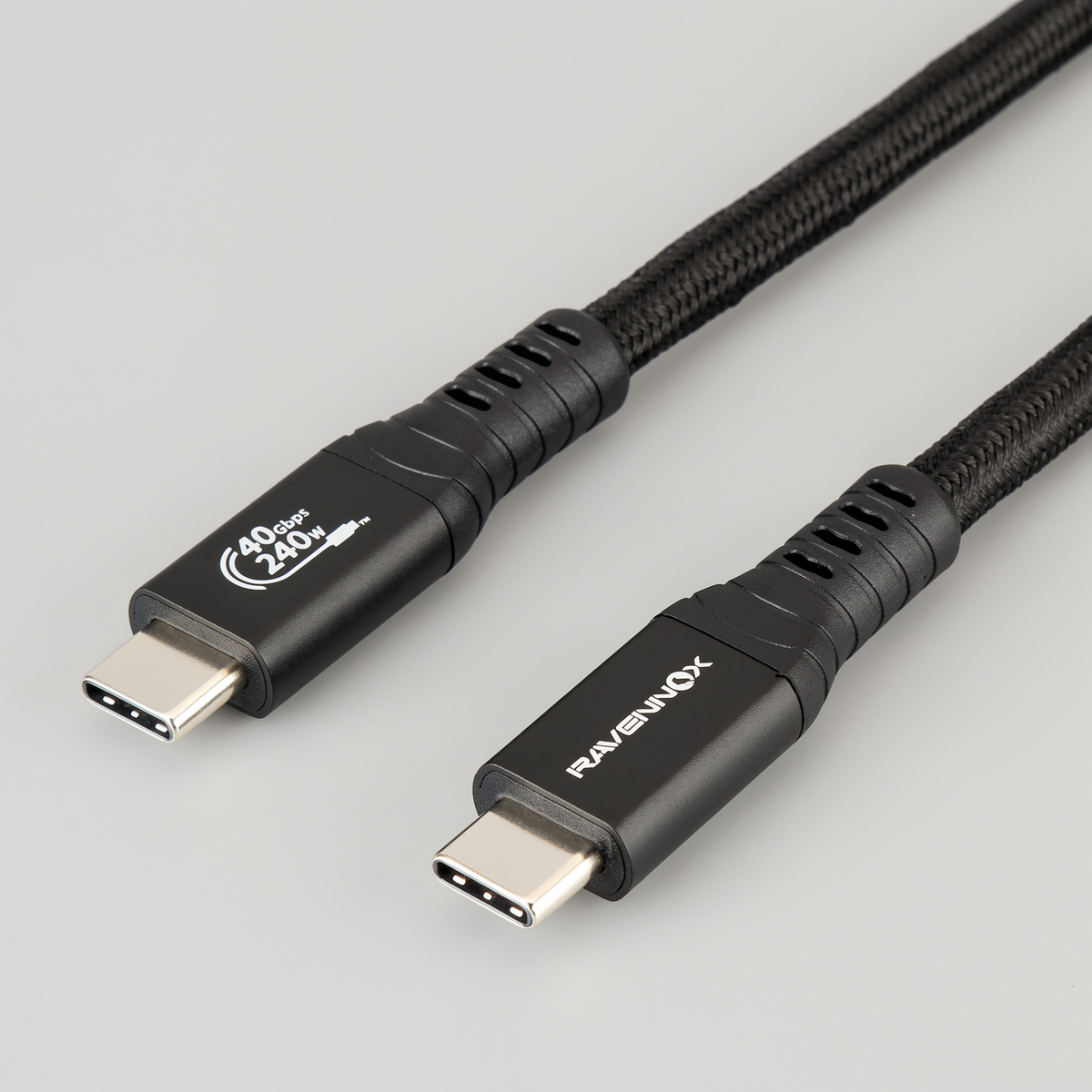
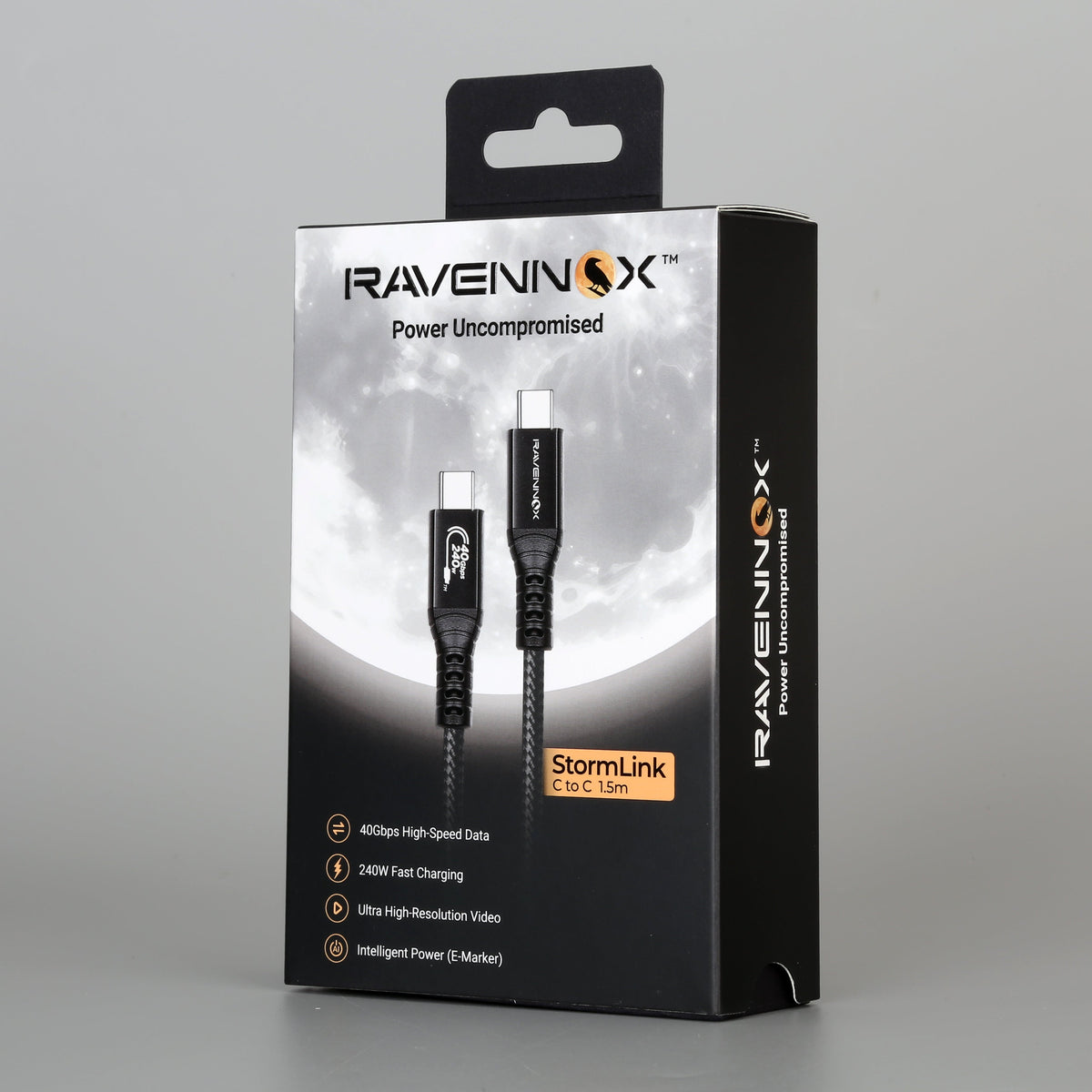
Ravennox StormLink is rated for up to 240W with an E-Marker chip, so the cable won't be the ceiling for a USB PD charger and laptop. It also carries 40Gbps data and high-resolution video on compatible devices. Your charger and laptop still set the actual charging power, so a 65W laptop will charge at up to 65W.
Frequently asked questions
Can a USB-C cable make my laptop charge slower? Yes. A cable without an E-Marker chip is limited to 60W. A 100W cable limits a 140W or 240W charger to 100W.
Is it safe to charge my laptop with a lower-wattage charger? With USB PD chargers, generally yes. Apple says a USB-C Mac can charge from any USB PD adapter, even one below the recommended wattage. It will just charge more slowly, and may drain under heavy use.
Will a 240W cable damage my laptop or phone? No. The cable only sets the maximum. Your device and charger agree on a safe level before charging begins.
Why does my laptop say it's plugged in but not charging? The most common reasons are a battery-care limit, a charger that only covers the laptop's running power, or a heavy workload using everything the charger supplies.
Can I charge my laptop with a phone charger? Often it will work, but slowly. Phone chargers usually supply far less than a laptop needs, so expect slow charging or a draining battery under load.