USB-C Monitor Not Working? How to Fix "No Signal" Step by Step
You plug in a USB-C cable. The monitor wakes up, thinks for a second, then shows "No signal." The cable fits. The laptop even charges. So what's wrong?
The short answer: a USB-C monitor needs three things to agree. Your laptop's port must output video, your cable must have high-speed data lanes, and your monitor's USB-C input must accept video. If any one is missing, you get a black screen. The most common culprit is a charging-only USB 2.0 cable, followed by a laptop port that doesn't support video.
This guide works through the checks in order, fastest first, so you can find the cause before you buy anything.
Why does my USB-C monitor say "no signal"?
USB-C describes the shape of the plug, not what the connection can do. As we explain in our guide to which USB-C cable you need, two cables with identical plugs can have completely different capabilities.
Video travels over USB-C in one of two ways. DisplayPort Alternate Mode (DP Alt Mode) sends a DisplayPort video signal down the cable's high-speed lanes. USB4 and Thunderbolt carry DisplayPort video inside a faster, shared connection. Either way, every part of the chain has to support it.
|
Part of the chain |
What it needs for video |
Common failure |
|---|---|---|
|
Laptop port |
DP Alt Mode, USB4 or Thunderbolt |
Port handles charging and data only |
|
Cable |
High-speed lanes (USB 3.2, USB4 or Thunderbolt) |
USB 2.0 charging cable with no video lanes |
|
Monitor |
A USB-C input that accepts video |
Wrong input selected, or the USB-C port is for data only |
|
Hub, dock or adapter |
Support for the same video mode |
Device doesn't pass video through |
This isn't a rare problem. Microsoft reported that 27% of PCs with USB4 had shown a "limited functionality" notification, meaning a connected device needed a feature the port didn't provide.
Step 1: Check the monitor's input source
Most USB-C monitors also have HDMI and DisplayPort inputs, and many don't switch automatically. Open the monitor's on-screen menu and select the USB-C input. It may be labeled "Type-C" or "USB-C DP."
Check the manual, too. On some monitors, one USB-C port only connects the built-in USB hub, and video must go through a different port.
Step 2: Confirm your laptop's USB-C port supports video
Look at the small symbol printed beside the port:
- A D-shaped DisplayPort icon → the port supports DP Alt Mode.
- A lightning bolt → a Thunderbolt port, which supports video.
- No symbol, or only a USB logo → check your laptop's spec sheet. Many ports handle charging and data only.
Laptops with several USB-C ports don't always give every port the same features. On Windows, a "Display connection might be limited" notification usually means this. Microsoft's USB-C troubleshooting guide recommends plugging into the port that supports DisplayPort Alternate Mode, with the monitor connected directly.
On a Mac, choose System Settings, then Help in the menu bar, then your Mac's Specifications. Apple's guide points you to the Display Support or Video Support section for what your model can drive.
Step 3: Check the cable
This is the most common fix. Cables bundled with phones, or sold mainly for charging, often carry only USB 2.0 data. That means no lanes for video at all. They'll charge your laptop and may even power the monitor, which makes the fault confusing.
To check your cable:
- Look for a data rating on the packaging or listing: 10Gbps, 20Gbps, 40Gbps, or a USB4 or Thunderbolt logo.
- Ignore the wattage when judging video. A 100W or 240W rating says nothing about data lanes.
- Try the cable that came with the monitor, if there was one.
- Swap in a cable you know carries video. If the picture appears, you've found the problem.
If you get a picture that flickers, drops out or won't reach full resolution, the cable may be struggling with the bandwidth. Apple notes that a display will stay dark or run at a lower resolution or refresh rate if the cable or adapter can't support the display's settings.
Step 4: Remove the hub, dock or adapter
Connect the monitor straight to the laptop. Both Apple and Microsoft recommend this as a troubleshooting step.
If the direct connection works, the problem is in the middle of the chain. The dock may not support DP Alt Mode, may need its own driver installed, or may share its bandwidth between video and USB ports, which can cap resolution or refresh rate.
Step 5: Check how many displays your laptop supports
Every laptop has a limit on external displays. Go over it and the extra screen stays dark, even with perfect cables. Apple states that this limit varies by Mac model, and many entry-level laptops from every brand support only one or two.
If your second monitor is the one that won't wake, check the spec sheet before replacing anything.
Step 6: Force the laptop to detect the display
- Mac laptops with Apple silicon may ask you to allow a new accessory to connect. If you don't allow it, the display stays dark.
- On a Mac, open System Settings → Displays, hold the Option key, and click Detect Displays.
- On Windows, open Settings → System → Display, expand Multiple displays, and click Detect. Press Windows key + P to choose Extend or Duplicate.
- Using a closed-lid Mac? It needs to be connected to power and using an external keyboard and mouse.
- Still dark? Unplug the monitor from power for a moment, reconnect, then sleep and wake the laptop or restart it.
Step 7: Update drivers and firmware
Software affects whether a display is detected and which resolutions it can use. On Windows, install the latest graphics, chipset and USB4 or Thunderbolt drivers from your laptop maker, plus any BIOS update. On a Mac, install the latest macOS update. For any monitor, check the manufacturer's site for firmware updates.
Step 8: Match resolution and refresh rate to the whole chain
If you get a picture but not the monitor's full resolution or refresh rate, one link in the chain has a lower ceiling. The laptop, cable, dock and monitor all set limits, and the lowest one wins.
As a rule of thumb, a 10Gbps USB 3.2 connection typically handles a 4K monitor. High refresh rates, resolutions above 4K and multiple monitors from one port generally need USB4 or Thunderbolt, plus a laptop and monitor that support them.
Quick diagnosis: symptom, cause and fix
|
What you see |
Likely cause |
Try this |
|---|---|---|
|
"No signal," but the laptop charges |
USB 2.0 charging cable |
A cable rated 10Gbps or higher, or USB4 |
|
Windows says "Display connection might be limited" |
Port or cable lacks DP Alt Mode |
A different port, a direct connection, a video-capable cable |
|
Works directly, not through a dock |
Dock doesn't pass video or needs a driver |
Install the dock's driver, or connect directly |
|
Second monitor stays black |
Display limit reached |
Check your laptop's spec sheet |
|
Picture flickers or runs at low resolution |
Bandwidth ceiling or a marginal cable |
A higher-rated cable, fewer adapters |
|
Mac display dark on first connection |
Accessory not allowed |
Approve the accessory prompt |
When the cable is the fix: what to look for
If your testing points to the cable, choose one rated for the job, not just the plug:
- A data rating of at least 10Gbps for a single 4K monitor.
- USB4 40Gbps for docks, multiple displays and resolutions above 4K.
- A 5A E-Marker if the same cable will also charge your laptop at more than 60W. Many USB-C monitors can charge a laptop, and the cable sets part of that limit. Our guide to slow USB-C laptop charging explains why.
- One cable, not a chain. Extension cables and stacked adapters add points of failure.
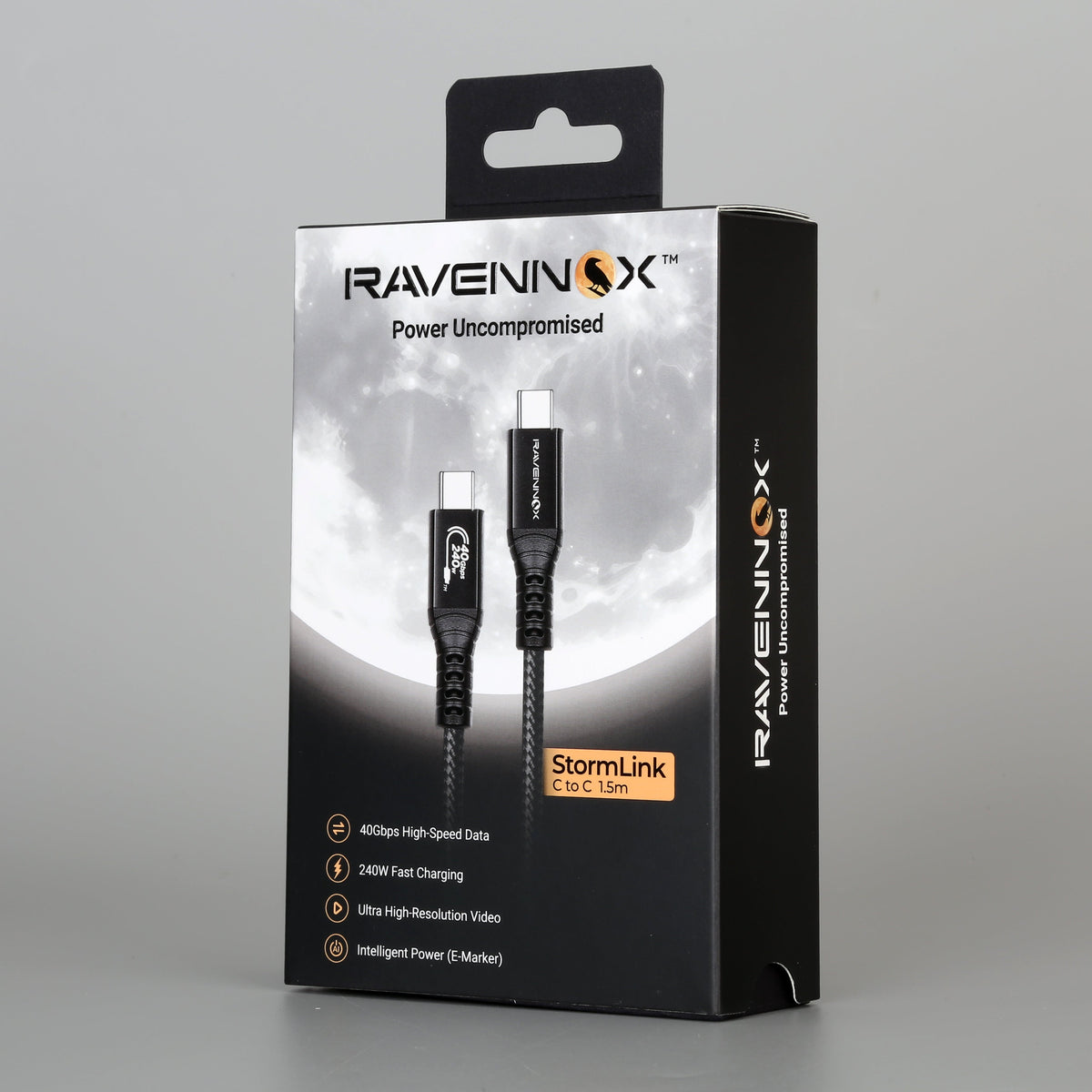
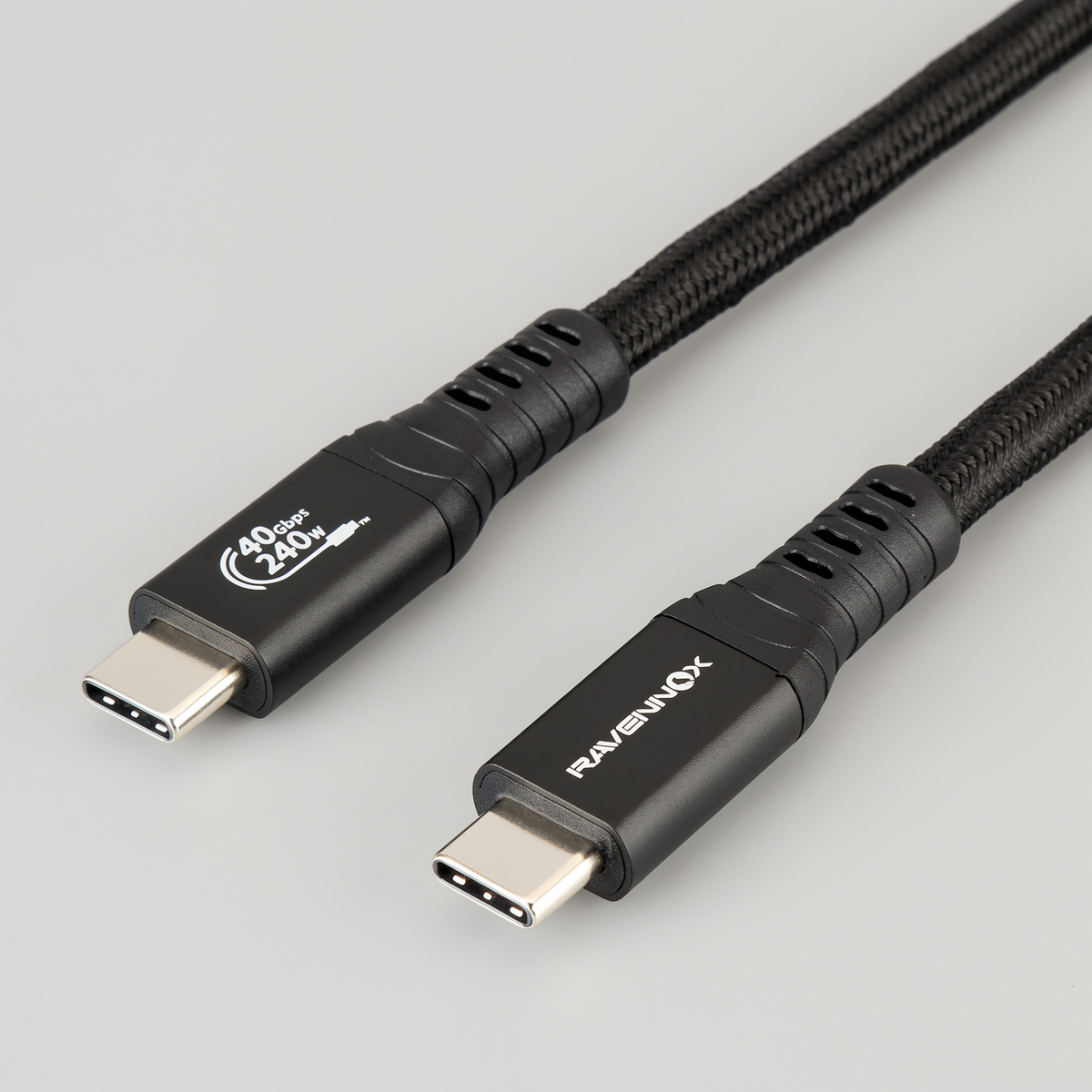
Ravennox StormLink is a 1.5m USB-C to USB-C cable rated for 40Gbps data, 240W charging and ultra high-resolution video, with an E-Marker chip and a braided jacket. With a laptop and monitor that support video over USB-C, it's one cable for picture, data and power. As with any cable, your laptop's port and your monitor set what you actually get.
Discover StormLink →
Frequently asked questions
Can any USB-C cable connect a monitor? No. The cable needs high-speed data lanes. USB 2.0 cables, including many charging cables, have no lanes for video, so the monitor shows no signal.
Why does my monitor work over HDMI but not USB-C? A laptop's HDMI port always outputs video. Its USB-C ports may not, and the USB-C cable may not carry video either. Check the port symbol first, then the cable.
Do I need a Thunderbolt cable for a USB-C monitor? Usually not. Most USB-C monitors use DisplayPort Alt Mode and work with any video-capable USB-C cable. Some high-end displays require Thunderbolt, so check the monitor's manual.
Why does my USB-C monitor flicker or keep disconnecting? Common causes are a cable that can't sustain the bandwidth, a dock or adapter in the chain, or outdated drivers. Connect directly with a known-good, higher-rated cable to narrow it down.
Can one USB-C cable run my monitor and charge my laptop? Yes, if your monitor supports USB-C power delivery and your laptop accepts it. Above 60W, the cable needs a 5A E-Marker chip.